Free HTML to Figma plugin

HTML to
Figma

The free HTML to design workflow for Figma: convert websites, live URLs, and HTML code into editable layers with the HTMLtoFigma plugin and Chrome extension.

100% free · No credit card · No conversion credits

Website capture, HTML import, and editable design handoff in one workflow.

HTMLtoFigma / Results
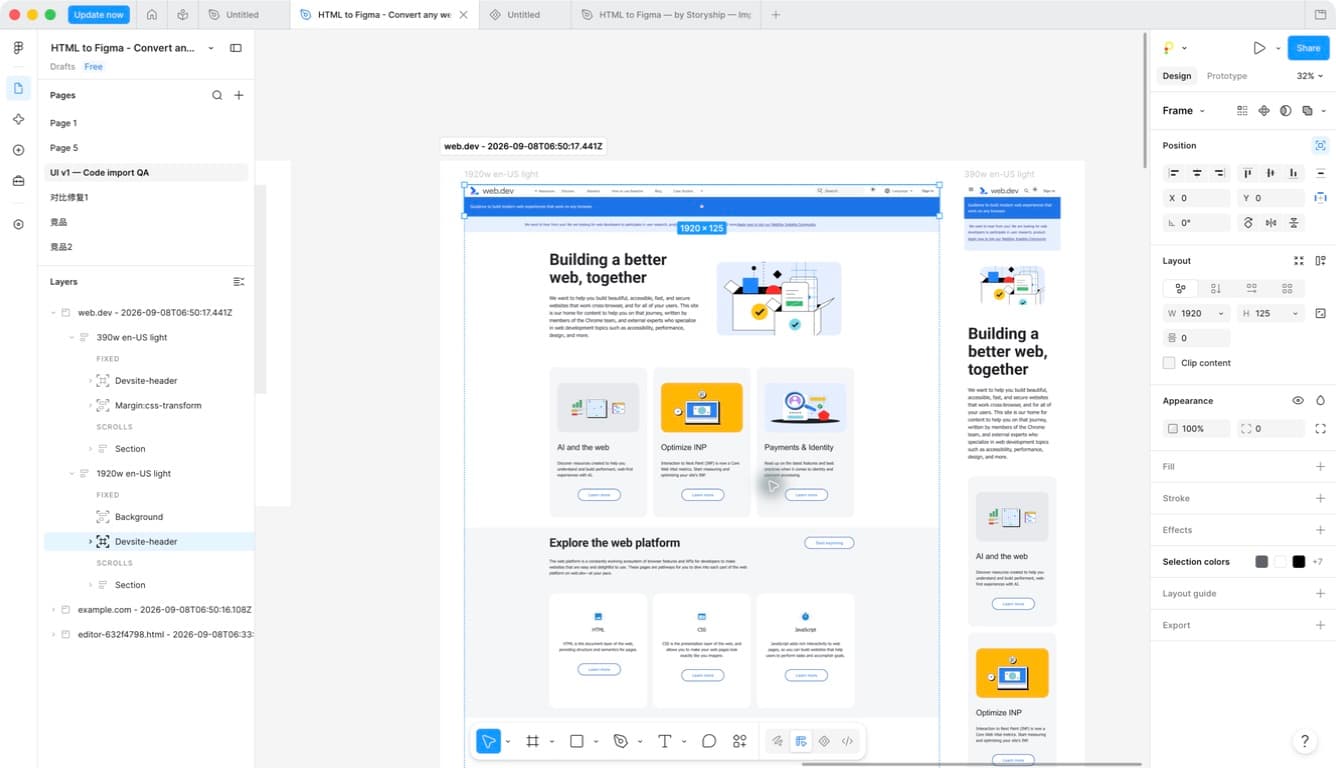
Actual web.dev import · editable page structure
HTML to Figma•••
HTML to Figma Website workspace
Actual web.dev import · editable page structureReal captures, not a live converter

Built for Speed

Capture time and supported output depend on the source page and selected settings.

Multi-URL

Batch import

100%

Free during early access

0

Credit cards required

Local

.h2f capture files

Problem Statement

The hard part is not finding a page. It is turning real output into editable design.

Most teams searching for HTML to Figma, website to Figma, or web to Figma are trying to escape the same slow loop: rebuild the shipped UI by hand, compare screenshots, pull styles out of DevTools, and only then start the actual redesign. HTMLtoFigma gives those teams a faster HTML to design workflow inside Figma.

Pain 01

Manual rebuild steals redesign time

When a team wants to review a live product surface, the work should start with decisions, not recreation. Rebuilding a page block by block just to get it back into Figma turns a quick teardown into hours of production cleanup before the design work even begins.

Pain 02

Screenshots stop being useful immediately

A screenshot can show what a page looks like, but it cannot become a working file. Teams need editable layers when they compare versions, test new copy, move sections around, or try to convert website structure into a realistic design baseline.

Pain 03

Browser reality and Figma drift apart

Typography, spacing, layout rules, and last-mile implementation details often live in the browser and never make it back into design. A strong web to Figma workflow closes that gap by giving designers and developers a shared visual source instead of two mismatched references.

Pain 04

Developers and designers lose context between tools

If one person is looking at code, another is looking at DevTools, and a third is rebuilding in Figma, the team burns time translating instead of iterating. Bringing HTML and CSS to Figma in an editable form shortens that loop and makes feedback easier to act on.

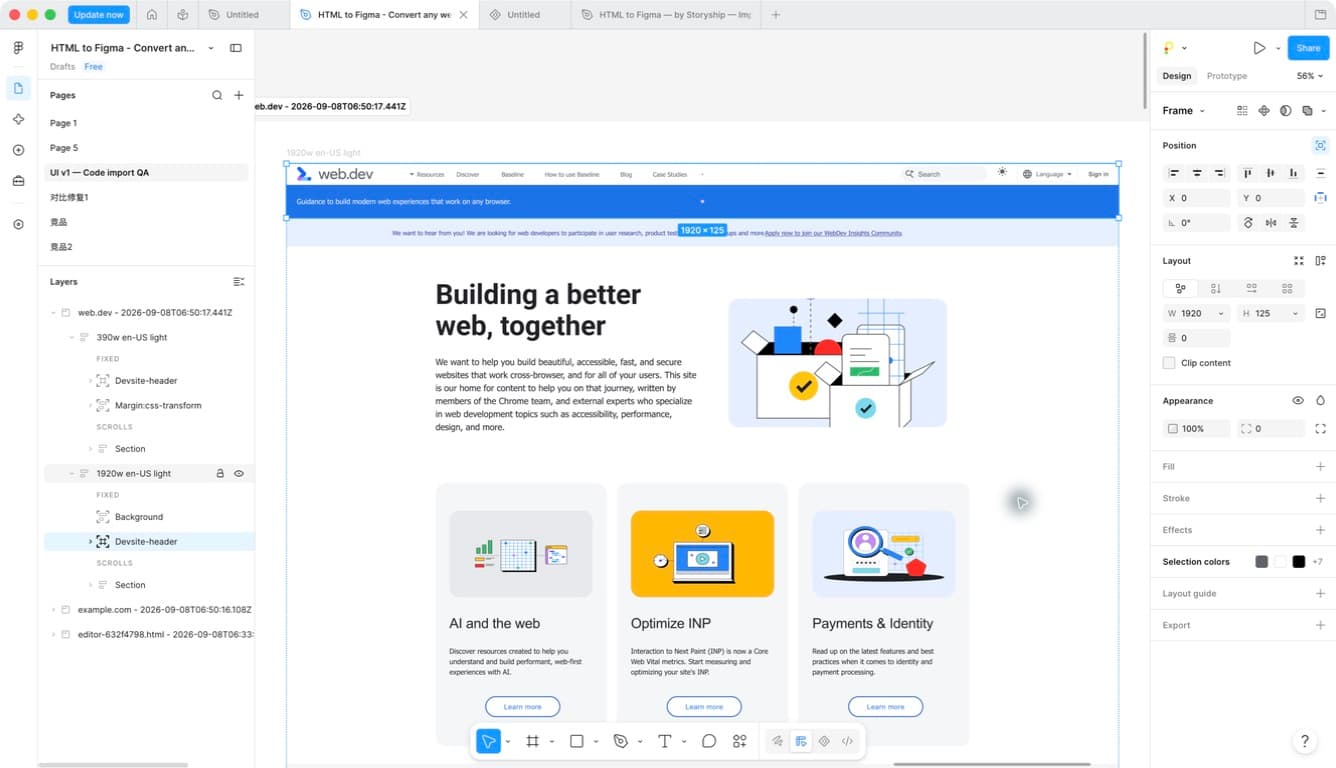
The value is simple: move from live HTML to editable design without rebuilding the page from zero.
MULTIPLE PAGES

Bring the whole shortlist.

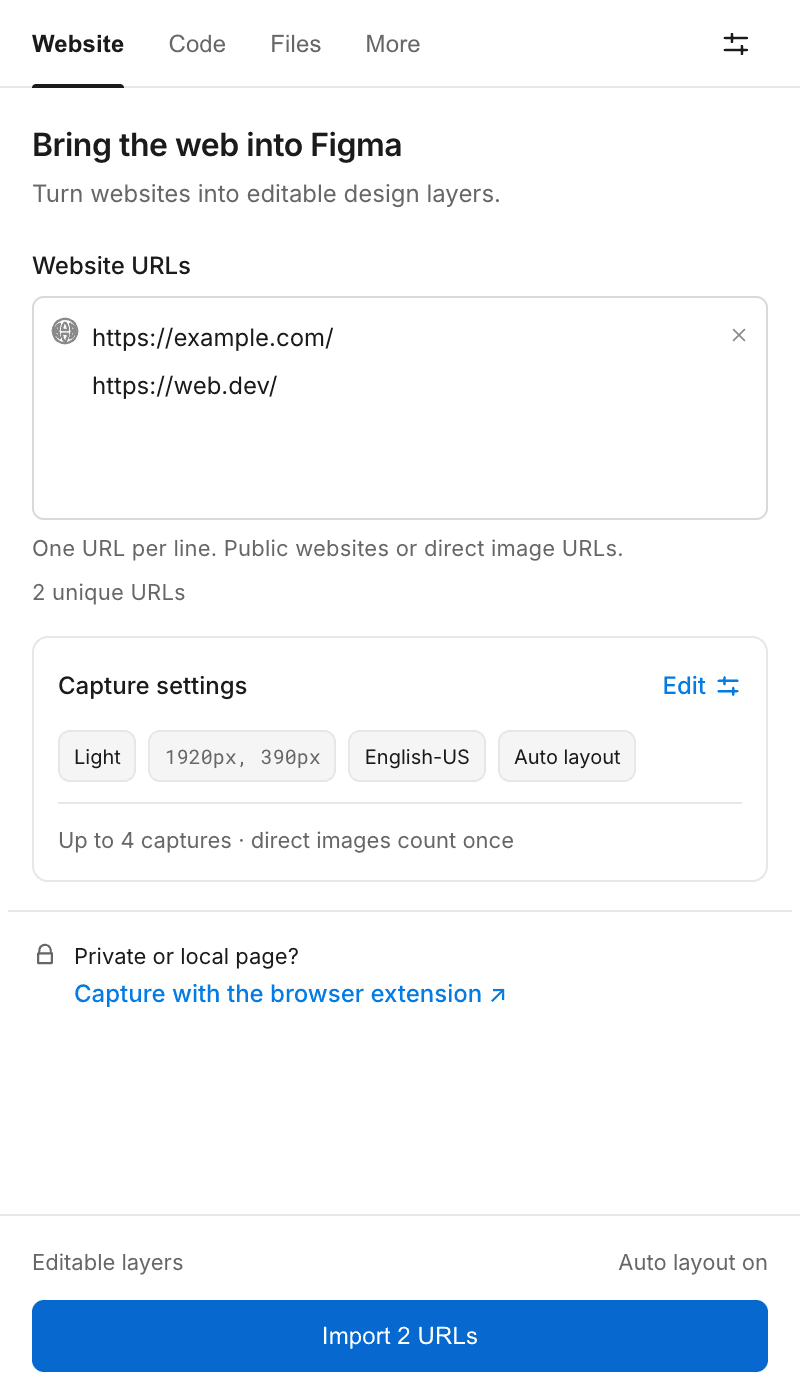
Batch website to Figma import keeps related pages in one HTMLtoFigma workflow. Paste multiple URLs, follow each result, and retry failed items without recapturing the successful ones.

Batch import is included in the free plugin, with per-job safety limits.

Explore batch import
WORKFLOW EXAMPLE · NOT A LIVE JOB
01
example.comPublic URL
02
web.devPublic URL
2 URLs×2 widths4 captures
Example · DesktopExample · Mobileweb.dev · Desktopweb.dev · Mobile

One theme and language in this example. Successful imports remain available if another URL fails.

Real web.dev desktop and mobile layouts imported into Figma
Actual web.dev capture · desktop + mobile
RESPONSIVE CAPTURE

See the layout change.

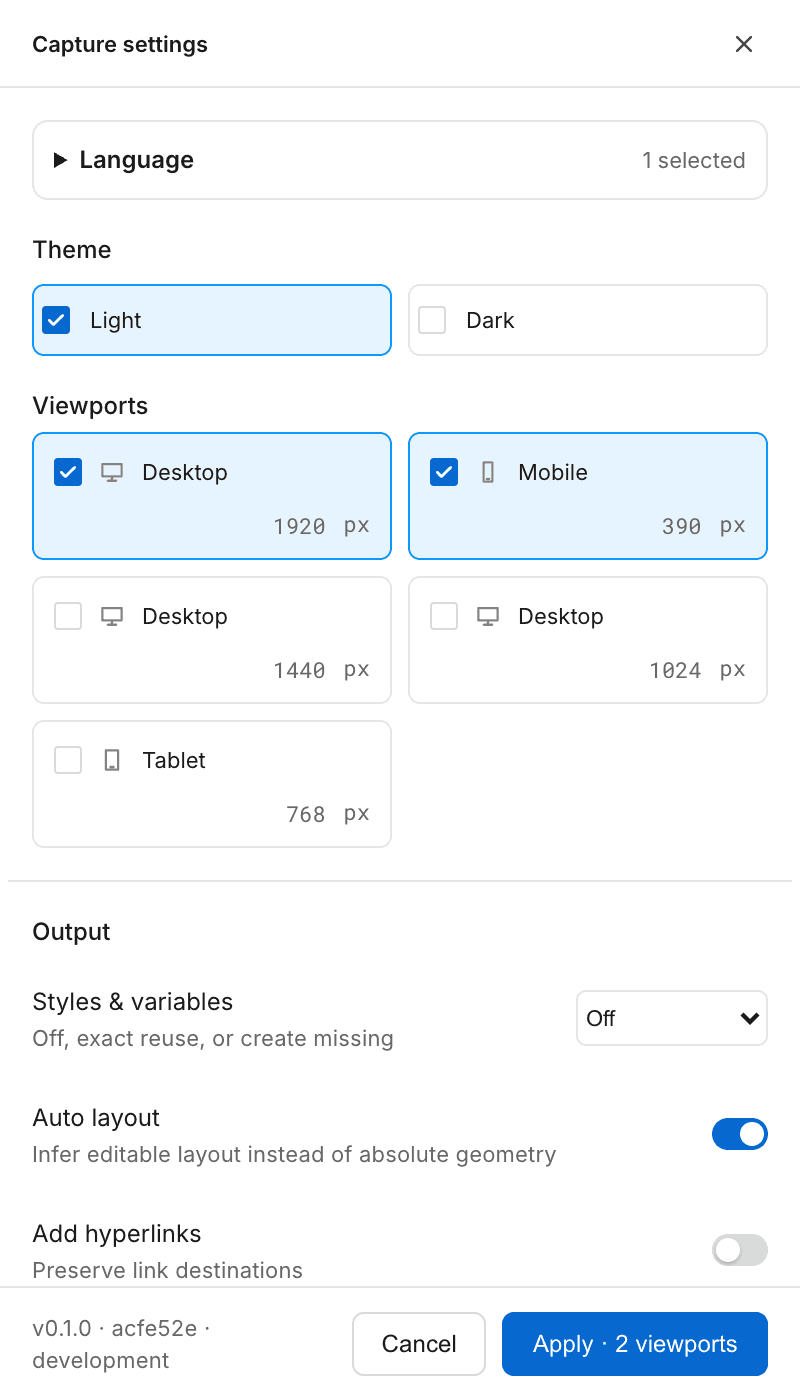
Compare responsive layouts in one web to Figma workflow with HTMLtoFigma. Add Light and Dark where the source supports them, then inspect text, spacing and page structure side by side.

Compare capture options
RE-IMPORT & UPDATE

Keep the place.
Refresh the source.

Update a managed result with the HTML to Figma plugin while retaining its root identity and position. Review manual-edit warnings before replacing content; a failed update keeps the old result.

Learn the update workflow
MANAGED UPDATE · WORKFLOW
  1. 1
    Select the imported root

    Start from a result managed by the plugin.

  2. 2
    Review source and changes

    Confirm before replacing manual edits.

  3. 3
    Update in the same place

    New capture, same managed root.

Not an automatic merge of all manual design edits.

How It Works

How It Works - 3 Simple Steps

Use the plugin like a fast browser-to-design bridge: install it once, choose a source, and refine real layers instead of tracing screenshots.

01

Install the plugin in Figma

Start inside Figma Community and install HTMLtoFigma in one click. The plugin is designed to work from the same place your design team already collaborates, so there is no extra dashboard or onboarding flow to learn before the first import.

02

Paste a URL or HTML code

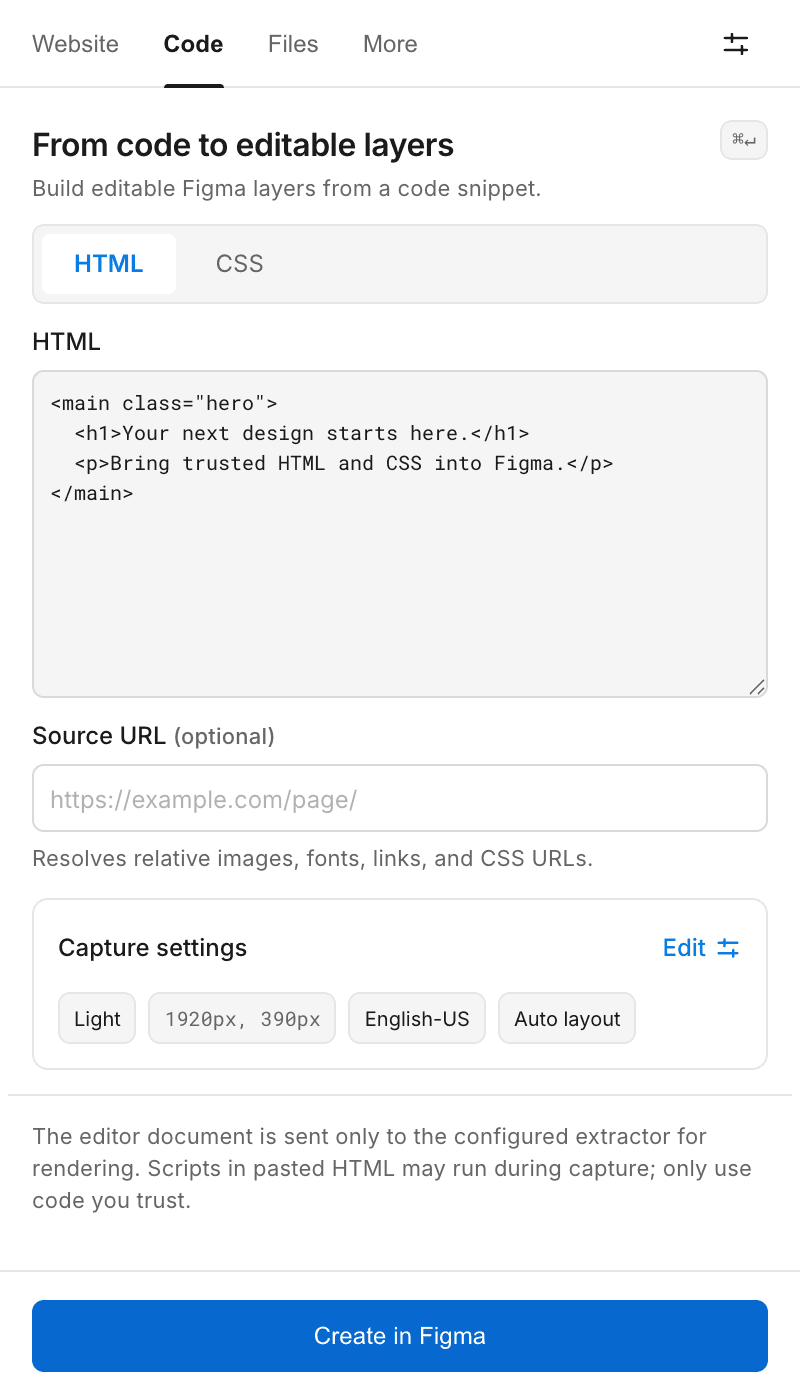
Choose the input that matches the source material. Paste a public webpage URL when you want to capture a live page, or switch to code mode when you want to import a component, section, or full HTML file directly from your editor.

How to import HTML to Figma
03

Edit the generated Figma layers

After conversion, text, containers, imagery, and layout blocks land in Figma as editable layers. Instead of rebuilding structure manually, your team can immediately tweak spacing, test new copy, compare designs, and prepare redesign concepts.

Features

Why Designers Choose HTMLtoFigma

The workflow is built for teams who need to convert HTML to Figma quickly without rebuilding every page by hand.

Editable layers, not flat screenshots

Every major element becomes a real design object you can move, restyle, rename, and reorganize. That matters when the goal is redesign, QA, teardown work, or stakeholder review instead of static inspiration capture.

CSS fidelity that survives handoff

Typography, spacing, fills, borders, and layout structure are preserved closely enough to make browser-to-Figma inspection useful. Moving HTML and CSS to Figma this way lets teams compare the imported result against production instead of keeping details trapped in DevTools.

URL import for public webpages

Drop in a live URL to capture the current page state. Whether the goal is an HTML to design Figma workflow or a quick audit, teams can review existing marketing pages, competitor flows, landing pages, and documentation sites without reconstructing them block by block.

Also available as a Chrome extension

Prefer to work straight from the browser? Use the HTMLtoFigma Chrome extension as a browser-first HTML to Figma extension, then send the page you are viewing to Figma without breaking your review flow.

Use Cases

Built for Every Design Workflow

The product is most valuable when teams need a fast web to Figma workflow and a browser state turned into a design starting point.

Workflow 01

Design QA & Handoff

Import the shipped page into Figma and compare it against the source design to spot spacing drift, missing typography tokens, and misaligned components. A Figma HTML to design comparison is faster and more accurate than bouncing between browser DevTools and a separate design file.

Workflow 02

Competitive Analysis

Convert a competitor landing page into editable layers so you can inspect hierarchy, CTA placement, pricing structure, and page rhythm with more precision than screenshots allow.

Workflow 03

Website Redesign

Start redesign work from the current live state, not from memory. Imported structure gives teams a realistic baseline they can refactor, simplify, and restyle immediately.

Convert a website to Figma

Workflow 04

Inspiration Collection

Save strong headers, pricing layouts, onboarding panels, and content blocks as editable references instead of keeping a folder full of static captures that cannot be reused.

Demo

See It in Action

See how HTMLtoFigma turns a live URL into editable Figma layers. Explore real webpage and HTML/CSS import results, including desktop and mobile layouts.

Actual editable webpage import in FigmaView product preview

Real Figma captures · switch the preview above to compare workflows

Testimonials

What Designers Say

Illustrative ways designers can use the HTML to Figma workflow.

Illustrative examples, not verified customer testimonials.

Faster rebuilds

Saved me hours of manually rebuilding website layouts in Figma. The value is getting editable structure instead of screenshots.

UX Designer

CSS fidelity

The strongest part is how quickly typography, spacing, and page hierarchy become workable in Figma for teardown and QA work.

Product Designer

Redesign kickstarter

It gives redesign work a much faster starting point because the team begins from the live page instead of rebuilding the baseline.

Freelance Designer

Why Choose HTMLtoFigma

A faster path from browser output to editable design systems work

Fully editable Figma layers instead of screenshots
Works with supported public URLs for a fast online capture workflow
Preserves key CSS properties for review and redesign
An HTML to design Figma workflow with batch import and reusable capture settings
Available as a Figma plugin and Chrome extension
Useful for QA, teardown work, redesigns, and inspiration libraries
Free to start — no credit card or conversion credits

Pricing Preview

100% Free During Early Access

HTMLtoFigma is completely free while we refine the product. Batch import, responsive captures and re-import are included. No credit card required; individual jobs have safety limits. Future paid plans have not been announced.

Free

$0

Core import features are included during early access.

All core features included at no cost.

  • No conversion-credit purchases
  • URL import
  • Chrome extension
  • HTML code import
  • Batch import
  • Responsive and Light/Dark captures
  • Re-import and update
  • High-res image options
  • Auto Layout and font review

Pro

Coming soon

Future paid offering, not an available subscription.

Batch import and high-res image options are already in the free plugin.

  • No paid checkout available
  • Future plan details unannounced
  • Import features remain free
  • Support terms unannounced

FAQ

Frequently Asked Questions

The FAQ covers product fit, setup, Chrome extension access, and workflow expectations for users looking for HTML to design in Figma, website to Figma, and HTML code import answers.

What is HTMLtoFigma?

HTMLtoFigma is a Figma plugin for teams that need an HTML to design workflow in Figma. It turns webpages, URLs, and HTML code into editable layers without forcing you to rebuild the structure from scratch.

What is the best way to convert HTML to Figma?

If you need an HTML to Figma converter, the practical path is to import a live URL or paste HTML code and let the plugin generate editable layers. Teams that work from the browser can also use the HTML to Figma extension in Chrome for faster capture.

How do I install the HTML to Figma plugin?

Search for HTMLtoFigma on Figma Community and install the plugin. Once installed, open any Figma file, run the plugin from the menu, and start importing URLs or HTML code.

Can I import a full website into Figma?

You can import the current state of a public webpage through the URL workflow. Figma HTML to design imports are useful for redesigns, audits, and comparisons when a browser page needs to become editable design structure.

Is the HTML to Figma plugin free?

Yes. HTMLtoFigma is completely free during early access. All core features — URL import, HTML code import, Chrome extension, and editable layer output — are available at no cost.

Does it preserve CSS styles like fonts and colors?

That is the intended workflow. HTMLtoFigma is positioned around preserving enough typography, spacing, fills, borders, and structure for the imported result to be genuinely useful in Figma instead of acting like a screenshot.

Can I use it as a Chrome extension?

Yes. In addition to the Figma plugin, HTMLtoFigma offers a Chrome extension so you can capture the page you are already viewing and send it into Figma without changing context.

What's the difference between URL import and HTML code import?

URL import fetches a live webpage. HTML code import is for direct code snippets, sections, or full files. Teams usually use URL mode for real websites and code mode for component-level or developer-to-designer workflows.

Are the imported designs fully editable?

That is the core promise of the product. Imported results are meant to land as editable layers so teams can change content, layout, and styling directly in Figma.

How long does it take to convert a page?

Conversion time depends on page complexity, selected sizes and themes, assets, network conditions and Figma layer creation. The plugin shows capture and import progress; a fixed completion time is not guaranteed.

Can I import HTML code from my local project?

Yes. Copy the HTML and CSS from your local project, paste it into code mode, and import that structure as editable layers. It is a practical workflow for teams moving from browser audits to developer handoff and design revisions.

Import HTML code to Figma

Call To Action

Ready to Convert HTML to Figma?

Use HTMLtoFigma as a fast web to Figma workflow: convert web pages and HTML code into editable Figma design structure, then refine layouts, compare production output, or kick off redesign work without rebuilding from zero.

100% free · No credit card · No conversion credits