
HTML to Figma Auto Layout
Start with layout you can work with. Map supported browser patterns to native Figma Auto Layout, or keep captured geometry when positioning matters more.
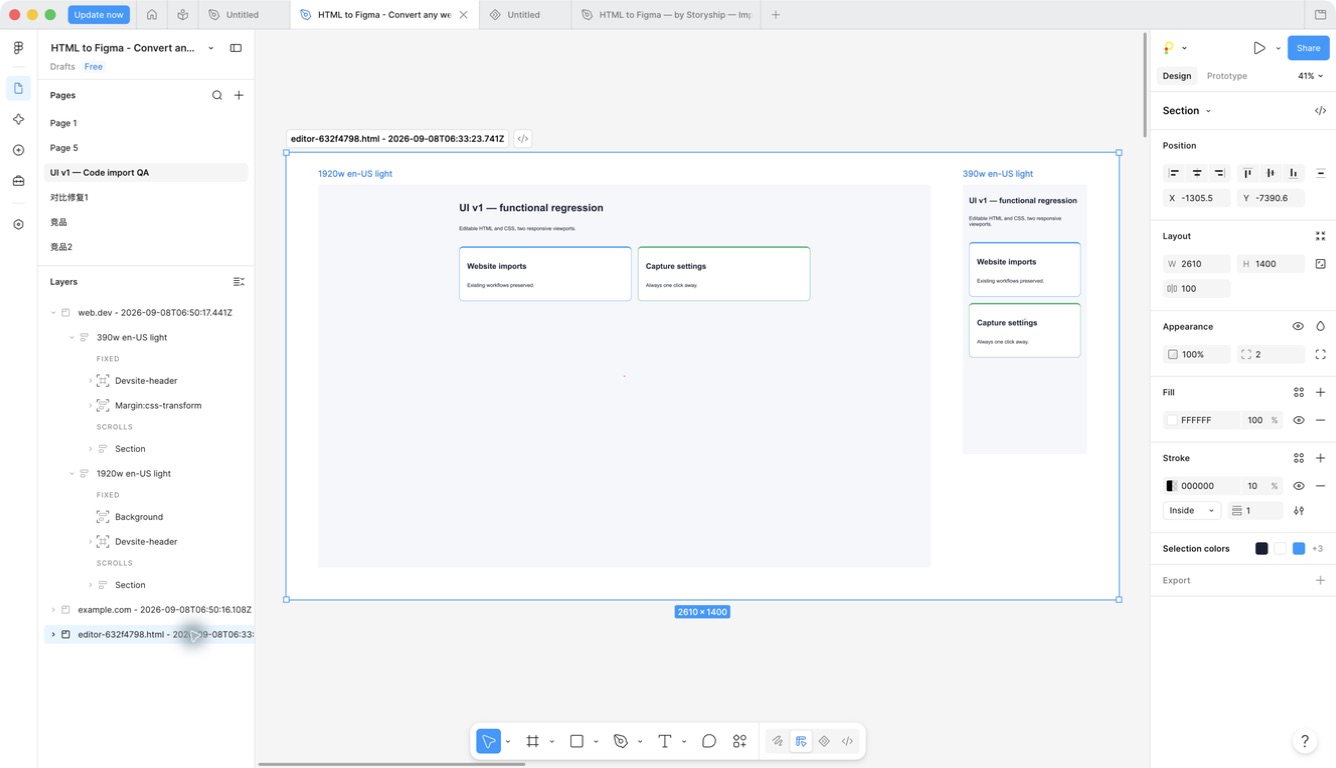
Editable structure where Figma can represent it
HTML to Figma Auto Layout translates supported CSS Flexbox, Grid and related stacking patterns into native layout properties. This makes spacing, padding and repeated blocks easier to edit after import.
The browser and Figma do not share the same layout engine. Complex positioning, transforms and unsupported interactions may keep captured geometry or use an explicit fallback. A faithful-looking result and a reusable design system are not the same promise.
Choose structure or captured geometry
Open capture settings and review Auto layout under Output. It is enabled by default. Import a representative page or component, then select a generated container in Figma and inspect its layout controls.
If an unusual source layout is easier to review as fixed geometry, disable Auto layout before importing. The plugin preserves captured positioning instead of forcing the whole result into inferred layout.
Compare the result at its captured width. Check text wrapping, gaps, padding and alignment before resizing the frame. Use the HTML/CSS editor for a controlled component example when you need to isolate a layout issue.
Reuse styles without replacing your library
Styles & variables offers Off, Reuse only and Create missing. Reuse only looks for exact compatible local matches; it is not permission to rename or overwrite your existing design assets.
Create missing can create supported styles and variables where needed. Variable modes depend on Figma plan capabilities. A Free-plan single-mode result has been verified; full Light/Dark variable-mode coverage is not a universal guarantee.
Semantic HTML layer names and preserved hyperlinks make the generated file easier to navigate. They describe the captured source, not a manually authored component taxonomy.
Finish with a font and image review
Unavailable fonts can change line breaks and spacing. Complete the font review using an available match or a font you are permitted to install. The plugin does not silently install arbitrary fonts.
High-res image options try larger candidates where supported and may take longer. They cannot create detail that the source does not provide. Raster content, protected assets and unsupported effects can still require a fallback.
Interactive-state variants and repeated-component inference are optional, bounded features. They are not enabled by default and do not reconstruct arbitrary application behavior or a complete component library.
FAQ
Questions before you import
Practical answers for auto layout.
Can I turn Auto Layout off?
Yes. Disable Auto layout in capture settings to keep captured absolute geometry. Test the option on the source that matters to your workflow.
Will all CSS become Auto Layout?
No. The importer maps supported patterns and keeps safer geometry or explicit fallbacks for layouts that cannot be represented reliably.
Can I reuse my existing styles?
Use Reuse only for exact compatible local matches. Create missing is a separate option; neither mode is a general design-system reconciliation tool.
Are components and hover states automatic?
No. They are optional safe subsets. Repeated-component inference requires matching captured roots, and interactive states only cover supported CSS visual states.